Events

Event Registration

How to set up a registration form for your MSA events so you can track attendance, grow your newsletter list, process ticket payments, and send automatic confirmations.

Why Use a Registration Form

Every single major MSA event must make use of an event registration form. The benefits are numerous: you can keep headcounts for attendees throughout the term (and hence measure performance), collect emails for your newsletter, gauge where your audience is learning about your initiatives from, and much more.

What Fields the Form Should Include

Build the registration form in Google Forms with the following fields.

Standard fields

  • Full Name
  • Email
  • Brother / Sister
  • Term & Program
  • How did you hear about us?

Special fields

  • Ticket payment screenshot (if the event is paid).

Note: You can also process payments via the following tools:

  • Stripe
  • Luma
  • Square
  • And others…

Post-Form Submission

Send a confirmation email

Users must receive a confirmation email once they submit:
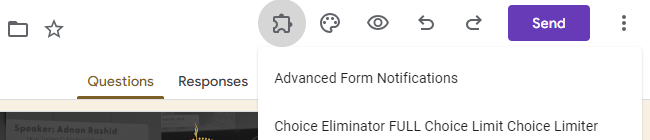
Advanced Form Notifications in the Google Forms add-ons menu
The installed "Advanced Form Notifications" add-on appears in the add-ons menu at the top of the form editor.

Set a post-submission message

  • In the form, go to Settings > Presentation > Confirmation Message and edit the message shown after submission.
Default Google Forms confirmation message
The default confirmation message ("Your response has been recorded") with the Edit link.
Editing the confirmation message in Google Forms
Editing the confirmation message to a custom note, e.g. "Follow our instagram @______".

